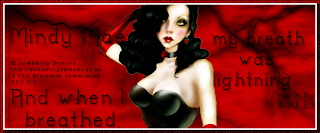
I've decided to move blogs. This one will remain open
for all the tutorials & links I have for it.
I don't want to close it since I know I have a lot
on it for everyone to use and refer too.
You can find me at my new blog called Wicked Little Cupcake.
Keep track of my tutorials and everything there :)
Thanks for following me!
Tuesday, January 10, 2012
Monday, January 9, 2012
A Resolution For 2012
Thursday, January 5, 2012
My Breath

My Breath
This tutorial was written
by Sarah Fiack on
January 5,2011
Any resemblance to another
tutorial is purely coincidental.
For this tutorial, I’m using
a tube by Screaming Demons.
You can find his art on sale at SATC
The forum PSP PARTY CENTRAL
has this tube as an exclusive tube.
Forum
Supplies:
Tube of choice
Forum Mask by
Lithium Flower Creations
Blog
Plugins:
AAA Frame Foto Frame
EyeCandy4000 Gradient Glow
Open a 600x250 new image.
Open a tube of choice.
Fill the new image with a black
color layer or a dark one of choice.
Go to layers
Add a new raster layer.
I filled this layer with red but
it varies on the tube you are using.
Apply forum mask of choice.
I am using Mask38_Lightning.
Merge group.
Copy & paste your tube as a
new layer. Position as wanted on
the tag. I positioned mine in center
of the tag.
Using your magic wand,
select the bottom black layer.
Back on your tube layer,
selections invert & press delete.
Add a drop shadow to the tube.
2,2,50,5 Black.
Add a quote or wordart of choice
under your main tube layer.
Add the above drop shadow
to the text you use.
Merge layers together.
Add a new raster layer.
Fill with the same color as
the mask layer.
Apply the plugin
AAA Frame
width is 5
Click in the middle
of this layer with your
magic wand tool.
Press delete.
Select none.
Adjust
Add Noise
Uniform 25
Monochrome checked
EyeCandy4000 Gradient Glow
Fat Setting
Glow width 3
This should outline the noise layer.
Merge layers visible again.
Add copyright info & name.
Save as png or jpeg.
Thanks for trying my tutorial!
Thursday, December 29, 2011
100% Life

100% Life
This tutorial was written
by Sarah Fiack on
December 29, 2011
Any resemblance to another
tutorial is purely coincidental.
For this tutorial, I’m using a
tube by Ed Mironiuk
You can purchase his tubes at CDO
Supplies:
Tube of Choice
Scrap of choice
I am using one called Live Out Loud
by Pimp'd Designz.
You can purchase it at
PMTw/S Store
Plugin
EyeCandy 4000 Gradient Glow
Open up a 600x600 new image.
Open up your tube of choice &
scrap supplies.
Choose a frame of choice.
I am using a multi circle frame
but its up to you.
Resize the frame 88%
Copy & paste as a new layer onto
your main image.
Using your magic wand tool &
holding shift button down,
select inside four random circles
of the frame.
Selections modify expand by 3.
Paste a paper of choice.
Selections invert & press delete.
Select none.
Move the paper under frame layer.
Repeat this with rest of circles using
different papers.
Merge the different paper layers together.
Add a drop shadow to the frame layer.
2,2,50,5 Black
Copy & paste your tube of choice
as a new layer.
Add the above drop shadow to the tube.
Open a wordart element from scrap
or one of choice.
Resize 60% or as needed.
Paste on the tag as a new layer.
Apply EyeCandy 4000 Gradient Glow
Glow width 3 Setting Fat
to the wordart.
Open a paint splatter element of choice.
Paste on the bottom layer.
You want it to appear behind the frame layers.
Open a sign element.
Resize 30%
Paste as wanted on the tag.
Open staples or stitches element.
Resize 50%
Position on the tag to be on both
the sign & frame layers.
Open a star element.
Paste on the bottom layer near the top
of the tag & frame layers.
Duplicate the star once.
Move it down slightly
from the original star layer.
Merge layers together.
Resize 85%
Add copyright info & name.
Save as png.
Thanks for trying my tutorial.
Tuesday, December 20, 2011
Wanted

Wanted
This tutorial was written
by Sarah Fiack on
December 20,2011
Any resemblance to another
tutorial is purely coincidental.
For this tutorial, I’m using
a tube by Keith Garvey
which Bengals1 owns.
The forum PSP PARTY CENTRAL
has this tube as an exclusive tube.
PPCForum
Supplies:
Tube of choice
Scrap of choice
I am using one called Phoenix
which is an exclusive at the forum.
Plugins:
EyeCandy 4000 Wood
BeckyMask127
Open a 600x600 new image.
Open up your tube & scrap supplies.
Copy & paste your tube as a
new layer on your new image.
Add a new raster layer underneath
your main tube layer.
Fill the layer with a color of choice,
EyeCandy 4000 Wood
Choose two colors from your tube
to use.
Settings Elm ( or as wanted )
Ring Thickness 31.55
Cut Offset 8
Variation Amount 18
Variation Roughness 68
Now apply Beckmask 127
to the wood effect layer.
Merge group.
Duplicate the mask once & mirror.
Merge the two wood mask layers together.
Open a rope lasso element.
Resize 70% & 50%.
Paste along the bottom of the tag.
Open boots element.
Resize 50 & 70%. Mirror the boots.
Position on the tag opposite the lasso
element.
Open a shotgun element.
Resize 70%
Rotate free rotate left 90.
Position behind the boots element.
Open mud splatters element.
Paste as wanted on the wood wall.
Open a scattering of stars element.
Paste as wanted on the tag.
Open a money element.
Resize 70%
Position between your main tube
& the wall layer.
I positioned at the bottom left side
of the tag.
Duplicate the money layer once.
Rotate free rotate 15 right.
Now position this layer right by the
original layer & merge together.
Duplicate the money layer once.
Rotate free rotate right 90.
Position this layer near the
top right of the tag behind your tube.
Merge layers visible.
Resize 88%.
Add copyright info & name.
Save as png.
Thanks for trying my tutorial.
Tuesday, December 13, 2011
Wordart 5 Finger Death Punch Lyrics
Sharing some wordart I created tonight.
I used lyrcs from one of my favorite bands
5 Finger Death Punch. Now I know these
aren't for everyone..but consider this your
warning. If you don't like them then
don't use them. But please don't come
bitching to me. I love these which is
why I created the wordarts.

Download Here
I used lyrcs from one of my favorite bands
5 Finger Death Punch. Now I know these
aren't for everyone..but consider this your
warning. If you don't like them then
don't use them. But please don't come
bitching to me. I love these which is
why I created the wordarts.

Download Here
Wednesday, November 30, 2011
Embrace Nature

This tube is very me. I love trees and
have a special connection to them.http://www.blogger.com/img/blank.gif
So I had to write a tutorial featuring this tube.
Embrace Nature
This tutorial was written
by Sarah Fiack on
November 30,2011
Any resemblance to another
tutorial is purely coincidental.
For this tutorial, I’m using
a tube by Sue Miller.
You can purchase her tubes at
Up Your Art Here
Plugins:
EyeCandy4000
Mura's Meister Copies
Xero Porcelain
AAA Frames Foto Frame
Open a 600x250 new image.
Open your tube of choice.
Fill the new image with a color
from your tube.
Select plugin
EyeCandy4000 Wood
Grain Settings
Grain Lengthy18
Grain width 0.72
Grain Denisty 50
Grain Opacity 30
Basic is default settings
Set color to two colors you
want for the wood.
Click okay.
Select all
float - defloat
Paste your tube as a
new layer.
Selections invert
& press delete.
Select none.
Add a drop shadow to
the tube layer.
2,2,50,5 Black
Now duplicate the tube layer
once.
On the bottom tube layer,
Mura's Meister Copies
Wall Paper Rotate -Default settings.
Effects - Art Media Effects
Brush Strokes -Default
Apply.
Apply plugin Xero Porcelain
to the brush strokes layer.
Softness 50
Strength & Brightness 128
Lower the opacity on this tag to
about 65 or as wanted.
You want to see the wood
lines coming through.
Merge layers together.
Apply plugin AAA Frames
Foto Frame
Change the width to 10
& hit okay.
Add wordart or saying
of choice to the tag.
Add the earlier drop shadow
to the tag.
Add copyright info & name to the tag.
Save as png or jpeg.
Thanks for trying my tutorial.
Subscribe to:
Posts (Atom)
